

Photoshop Tip: Fix Red-Eye in Photographs
By: Terrence Oie
HowStuffWorks has a great explanation of why red-eye occurs. Basically, light from your flash reflects off a subjects retinas. There is normally a very narrow angle between your flash and the lens, lots of light is directly reflected back to lens. The flash reflected through the blood vessels in your eyes creates the red color. Subjects with light colored eyes are more prone to red-eye due to the fact that they have little light-absorbing pigment in their pupils.
To reduce occurances of red-eye in your photos you have three common options. First you can increase your effective ISO in darker conditions. Secondly, you could turn on your cameras red-eye function. A light will fire before the flash to contract the pupils of your subject. Thirdly, you may use a seperate flash and bounce the light to the subject.
Examples:

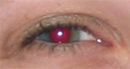
Before Adjustments
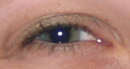
After Adjustments
Photoshop does not have a simple way to get rid of red-eye, so this is what I do:
- Duplicate your layer and select the new layer.
- Click on the Channels tab, and copy the green channel into the red channel. The image may appear green.
- Click Layers>Add Layer Mask>Hide All.
- Everything will be transparent. Color in the eyes with a white brush and eyes will become opaque.
- Adjust the Levels and/or use the Burn tool to get the exact color eyes that you wish.